
Mobile trading needs to be fast. If you are waiting for a desktop browser to load, you miss the entry. The Tradex download app puts the charts and the order book right on your phone. This guide walks you through the Tradex download APK process. Finding the official file. Getting it installed. Logging in on your Android device.
What you need before you start? An Android phone. A stable internet connection. And your Tradex55 login credentials. The steps here reflect the Android flow. The mobile experience gives you immediate access to market movements. But setting it up requires a few manual steps. Follow the process below.
Also Check : Tradex55 Live Login: How to Access Your Tradex Account and Trading Platform
Locating the Real Tradex Download Source
Your first job is finding the right file. Open the browser on your phone. Head to the official Tradex55 website. Do not search for the APK on random third-party mirror sites. Those files carry risks. You want the official installer directly from the platform. Stick to the official domain.
Look at the homepage. You will see a prominent button labeled Download Android App. It sits on the main banner or near the top of the page. On the login screen, you will also spot a Download Mobile App button near the bottom. Either button takes you to the same file. Tap it. The browser begins fetching the file.
Make sure your phone has enough storage space. An APK file does not take up much room. But the installed app and its cached market data will require space over time. Clear out old photos or unused apps if your storage is nearly full.
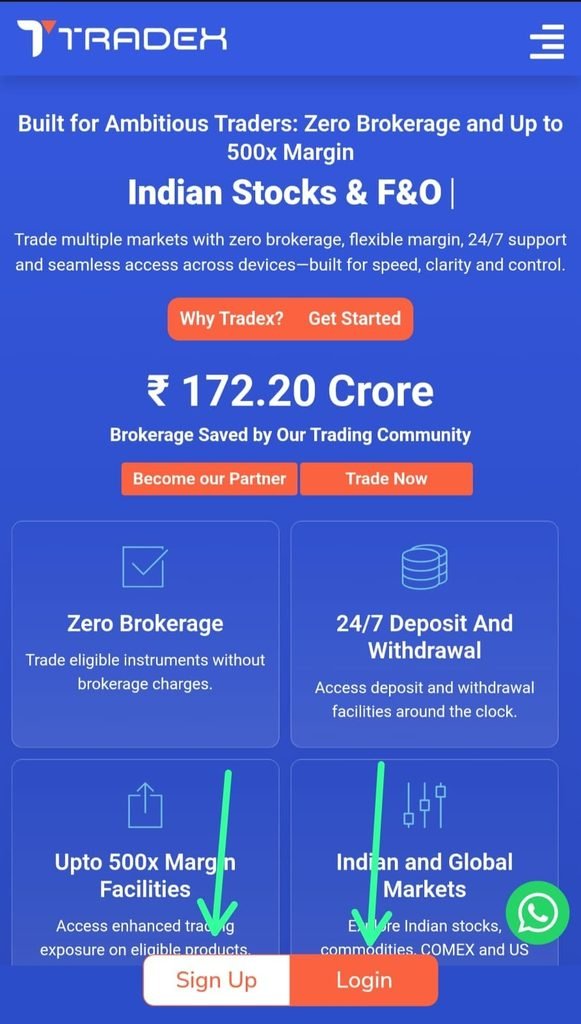
Tradex website screen.
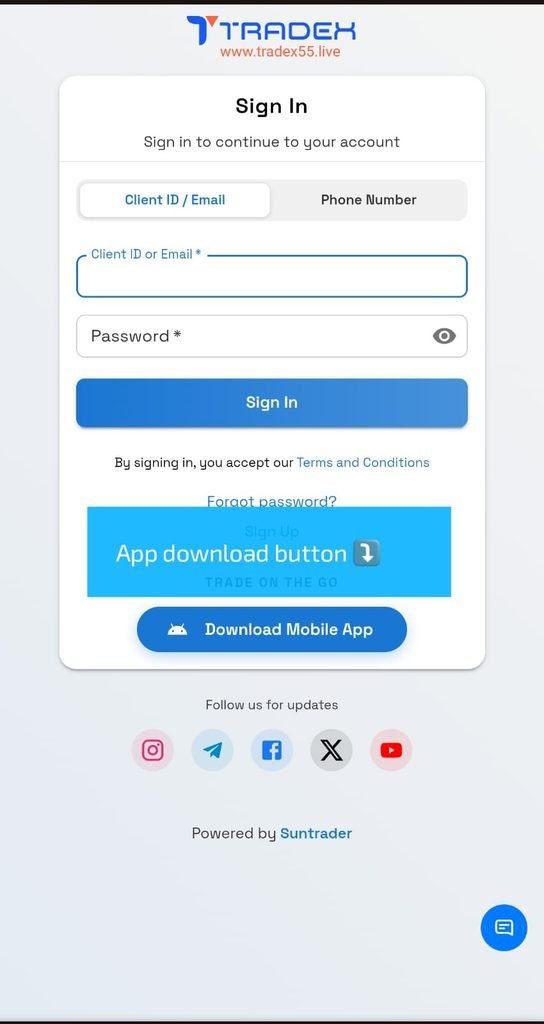
The app download button is available on both signup and login screens on the Tradex browser access.
Pulling the Tradex Download APK File
Once you tap the button, the browser takes over. A prompt appears at the bottom of the screen or as a pop-up. It asks if you want to download the file. The file ends in .apk. Check the file size before you hit confirm. If the size looks unusually small, cancel the download. A broken or malicious file usually shows a tiny size.
Tap Download. A progress bar appears. When it finishes, the file sits in your phone’s Downloads folder. The browser might offer an “Open” button right there. Tap it if you want to move straight to the install step. If you miss it, pull down your notification shade and tap the download complete alert.
Latest Post – TradexLive: A Complete Guide to the Trading Platform and Its Features
If the download stalls halfway through, check your connection. Switch from mobile data to Wi-Fi or vice versa. A weak signal often causes the download to freeze. Cancel the stalled download. Start it again from the website.
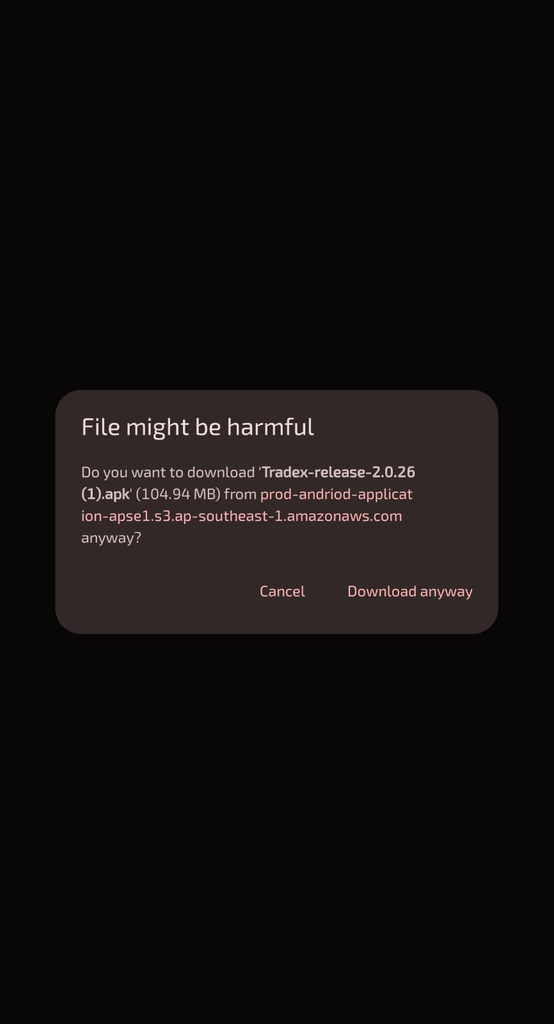
Once you click the “Download Mobile App” you will see this prompt on Android. You have to select “Download anyway”
Installing the Tradex Download App on Android
Android protects you from unknown apps. Since this file is not coming from the Google Play Store, the system blocks it the first time. Do not panic. This is standard. A security measure designed to stop malicious software.
When you tap the downloaded file, a warning screen appears. It says something like “For your security, your phone is not allowed to install unknown apps from this source.” Look for a Settings button on that warning. Tap it. On the next screen, toggle the switch to Allow from this source. Tap the back arrow. Return to the install prompt.
Now tap Install. The phone processes the file. Takes a few seconds. When it finishes, you will see a confirmation screen with two buttons. Open and Done. Tap Open. The app launches.
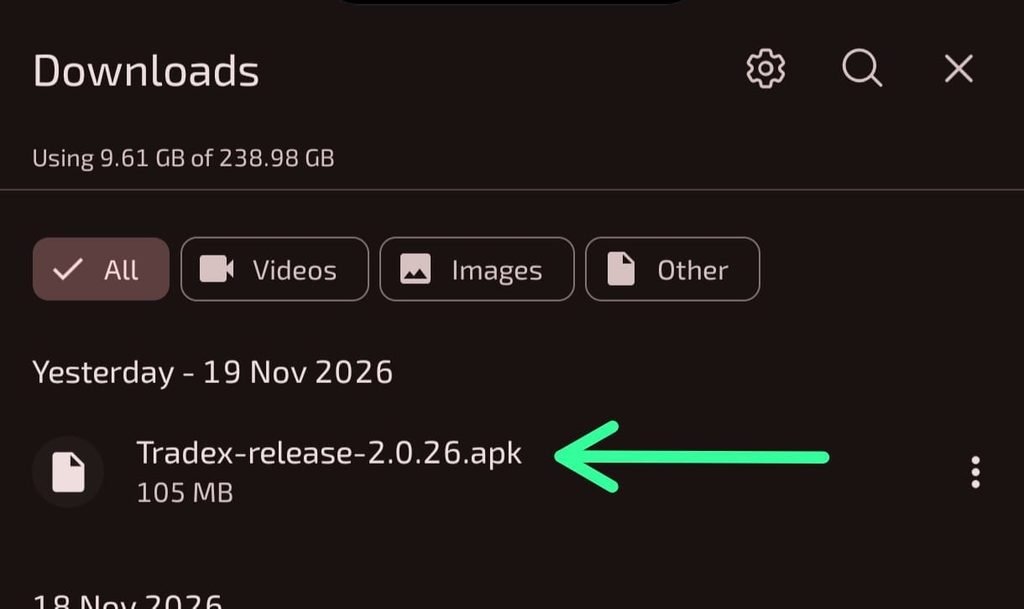
Find Tradex app in your browser’s downl;oad
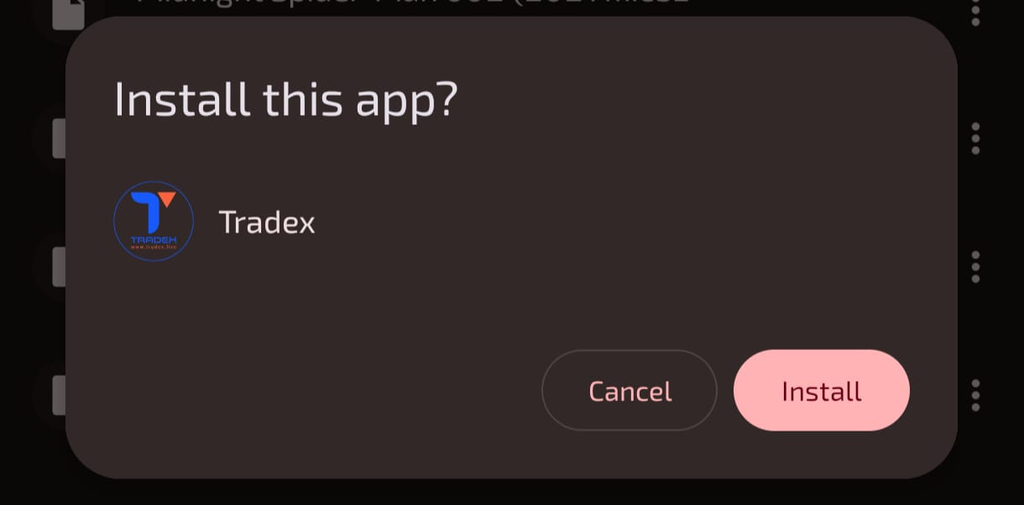
Once you select the app, a window like this will open, you have to select “install”
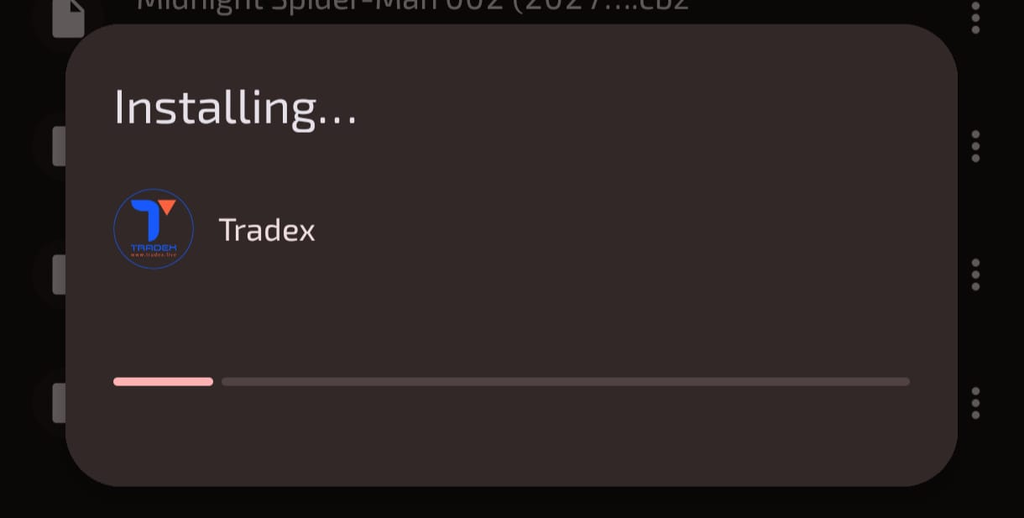
Now waIt as it installs
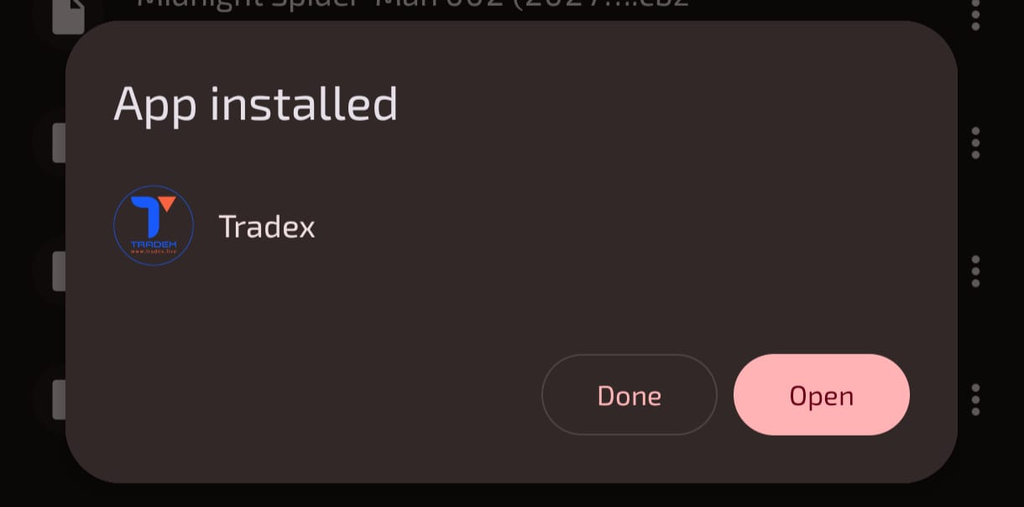
Now select “Open” to launch the app
First Launch of the Tradex Download App
The app opens to a splash screen. It might show the Tradex logo for a moment while it loads the data. Then the welcome screen appears.
You will likely see two options. Log In or Create an Account. If you already have an account from the website, tap Log In. The app asks for the same Client ID and password you use on the desktop. If you are new, you can use the app to start the sign-up process. It mirrors the web flow.
Take a moment to look at the layout. The app is designed for smaller screens. The navigation bar usually sits at the bottom. Tabs for the dashboard, market watch, orders, and profile. Get familiar with where these tabs are before you place a trade.
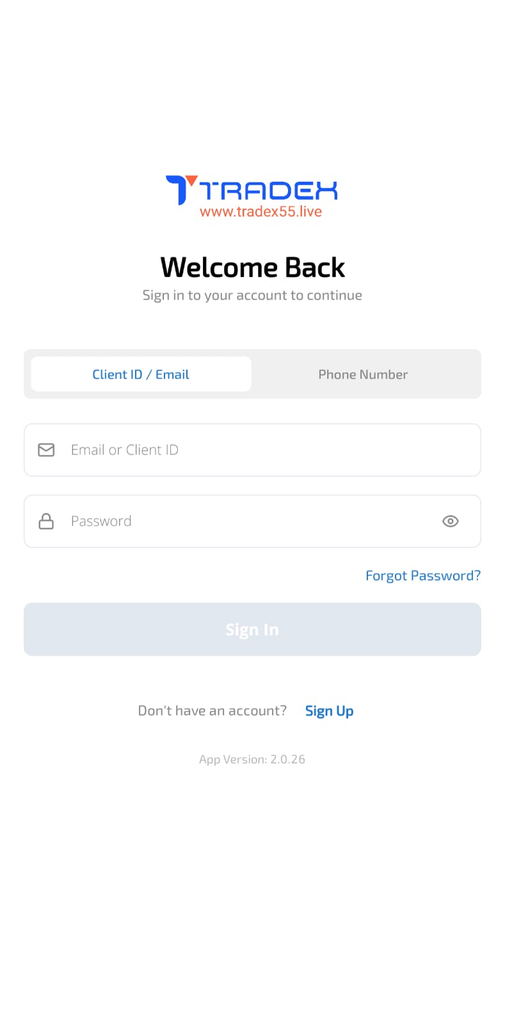
Welcome screen on Tradex app
Signing In Through the Tradex App
Tap the login option. The app displays the login form. Looks similar to the web version. Fits the mobile screen. You will see fields for your Client ID or Email and your Password.
Type your credentials exactly as you did on the web. Because the phone keyboard is smaller, typos happen. Use the eye icon on the password field to check your typing before you submit.
Once both fields are filled, tap the Sign In button. The app connects to the server. Pulls your account data. You land on the mobile dashboard. Your balance and open positions appear. The charts load in the market watch tab.
Place your login details in
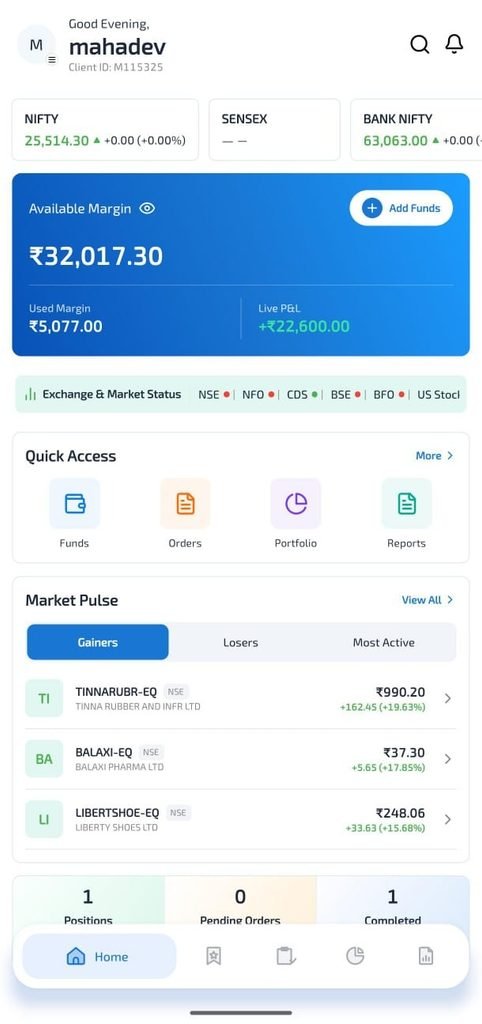
Et voila! Here’s your dashboard!!
Tradex Download App Failures and Fixes
Sometimes the download or install hits a wall. The browser blocks the file. The install fails. The app crashes on open. Here is how to handle the common ones.
If the browser refuses to download the file, check your internet connection. Try a different browser like Chrome if you are using a built-in one. If the file downloads but refuses to install, you may have forgotten to toggle the “Allow from this source” setting. Go back to your phone settings. Search for “Install unknown apps.” Ensure your browser has permission.
If the app installs but crashes the moment you open it, clear the app cache. Go to your phone’s Settings. Find the Tradex app in the list. Tap “Clear Cache.” Restart the app. If it still fails, uninstall it. Run the download process again. A corrupted download causes most early crashes.
Another common issue is the “App Not Installed” error. This usually happens if you already have a different version of the app on your phone. Uninstall the old version first. Then try installing the new APK.
Managing App Updates and Storage
Once the app is on your phone, you need to keep it updated. Unlike apps from the Play Store, an APK does not update automatically. When the platform releases a new version, you have to download the new APK and install it over the old one.
Check the website now and then. Look for update announcements. When a new version is available, download it. When you tap install, Android will ask if you want to update the existing app. Tap yes. Your login details stay saved. You do not lose your data.
Pay attention to the storage space the app uses. The app caches chart data to load faster. Over time, this cache can grow. Go into your phone’s settings. Clear the cache every few weeks. Keeps the app running smoothly. Do not clear the data, just the cache. Clearing data logs you out and resets your preferences.
Checks Before You Install the Tradex Download APK
Before you install any trading app, run a quick check.
First, confirm the source. If you downloaded the file from a link in an email or a random forum, delete it. Only install the APK from the official Tradex55 website.
Second, check the file permissions during install. An APK needs access to your storage to save charts. But it should not ask for access to your contacts or SMS unless strictly necessary. If the permission list looks too broad, cancel the install. Verify the source again.
Third, keep the file safe. Once the app is installed, you can delete the APK file from your downloads folder to save space. You do not need to keep the installer on your phone.
These checks take a few seconds. They keep your tradex download app experience clean. And your phone is secure.
Read More – Tradex Login 55: How to Access Your Tradex Account