

Getting started on a new trading platform should be straightforward. The Tradex sign up process is built to get you from the homepage to your account dashboard in just a few minutes. Whether you are looking to trade Indian markets or global indices, the registration flow is your first step.
This guide covers the exact sequence you will see on the screen. We will walk through the initial account creation, the verification step, the full registration form, and the final security setup. Every step below matches the live interface, so you know exactly what to expect before you click.
Finding the Tradex Register Entry Point
Your journey begins on the Tradex homepage. Look for the option to create a new account. Clicking this opens a small pop-up window titled “Create an account.”
This initial screen asks for two pieces of contact information. You will need to enter your phone number, using the default +91 India country code if you are registering locally. Below that, enter your active email address. Both fields are required because the platform uses them to send your verification code.
Once both fields are filled, click the “Get OTP” button at the bottom of the pop-up. This is the first active step in your tradex sign up. If you already have an existing account and clicked this by mistake, there is a convenient “Log In” link right beneath the button.
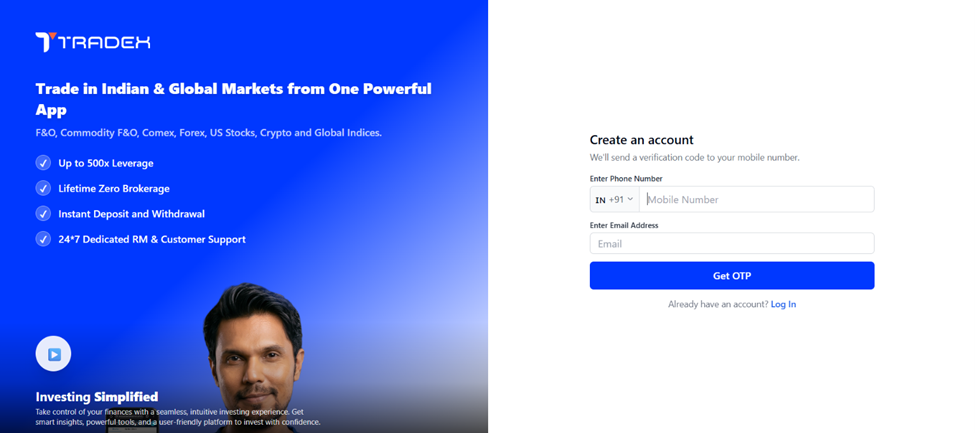
The Sign Up Screen
[SCREENSHOT 1: The “Create an account” modal showing the Phone Number (+91) and Email Address fields, with the “Get OTP” button highlighted.]
Learn About: Tradex App: A Complete Guide To The Tradex Trading Platform
Verifying Your Tradex Sign Up Details
After clicking “Get OTP,” the screen changes to the Verification Code page. This step confirms that the phone number and email you provided actually belong to you.
The platform sends a one-time password (OTP) to the contacts you just entered. The screen will display a masked version of your phone number and email so you can verify they are correct. If you notice a typo, you can use the “Edit contact information” link to go back.
Enter the code you received into the OTP field. If you only received the code on your phone, you can click “Show Phone OTP” to access it. Once the correct digits are in place, click the “Proceed” button to move forward. If the code does not arrive within a minute, check your spam folder or request a new one.
Put your details in
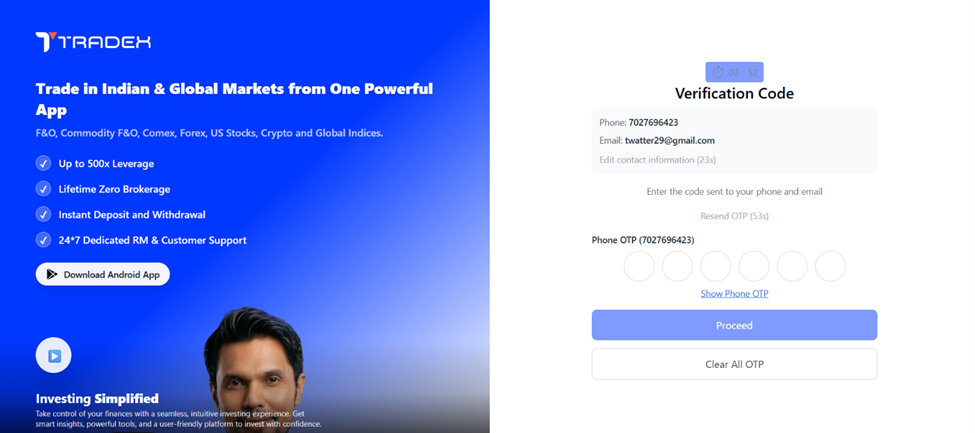
Once, your details are accepted you will get an OTP
[SCREENSHOT 2: The Verification Code screen showing the OTP input field, the masked contact info, and the “Proceed” button.]
Filling the Tradex Register Form, Field by Field
The next screen is the core of the tradex register process. This is where you set up your profile and secure your account.
First, enter your full legal name in the “Enter Full Name” field. This is how your account will be identified. Next, you need to create a strong password. The platform has specific security requirements, which are displayed right below the password field. Your password must be between 5 and 25 characters long. It must include at least one uppercase letter, one lowercase letter, one number, and one special character.
Type your password into the first field, then type it again in the “Confirm Password” field to ensure there are no typos. Finally, review the Terms of Service and Privacy Policy by clicking the links if you wish. Check the box to agree to the terms. Once everything is filled and checked, click the “Proceed” button to complete the tradex sign up form.
After entering OTP
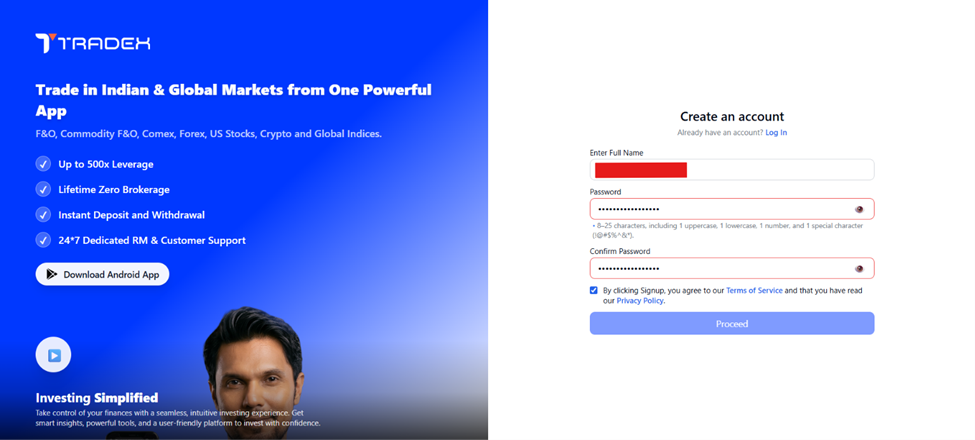
Putting in your details
The Account Created Screen and Your First Login
Once you click “Proceed” on the registration form, your account is officially created. The screen will display a confirmation message indicating that your registration was successful.
At this point, you are not yet inside the dashboard. You will see an option or a prompt to log in. Click that prompt. You will be taken to the login page where you can use the email, phone number, or Client ID you just registered, along with your new password.
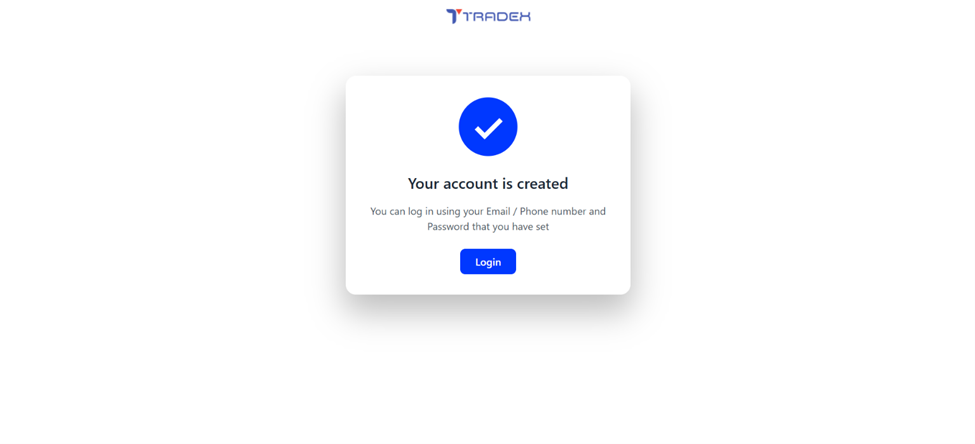
Once you see this, you know your account is created
Setting Your 6-Digit Security PIN
As soon as you log in for the first time, you will not be taken to the dashboard right away. Instead, the system forces you to set up a security layer before granting access. A “Create PIN” screen will appear.
You need to create a 6-digit code. Type your chosen numbers into the “New PIN” field. You can click the “Show” button if you want to see the digits as you type them. Then, type the exact same 6-digit code into the “Confirm New PIN” field.
Double-check that the numbers match perfectly. Once you are sure, click the bright “Confirm” button. If you change your mind or need to start over, there is a “Back to login page” link at the bottom. You cannot bypass this step. You must confirm the PIN to reach the dashboard.
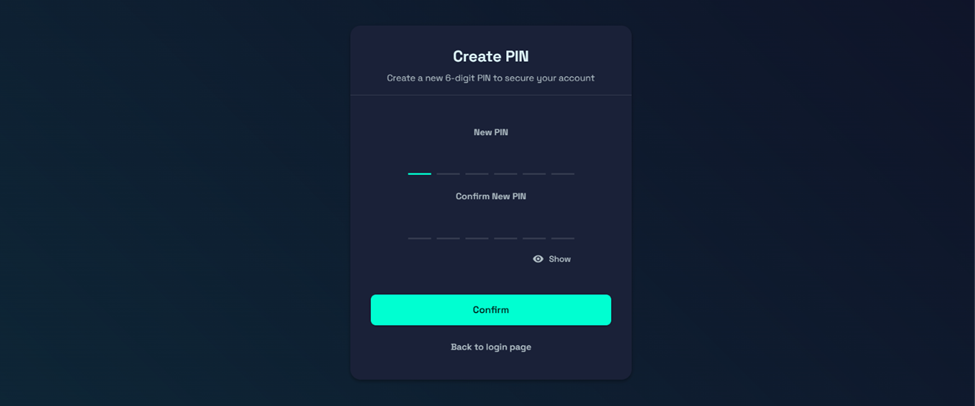
On your first attempt of logging in you will see this screen
Create your PIN.
What Happens After You Press Confirm
After you click Confirm on the PIN screen, the platform processes your security setup and unlocks your account. You will be directed straight to the main trading interface.
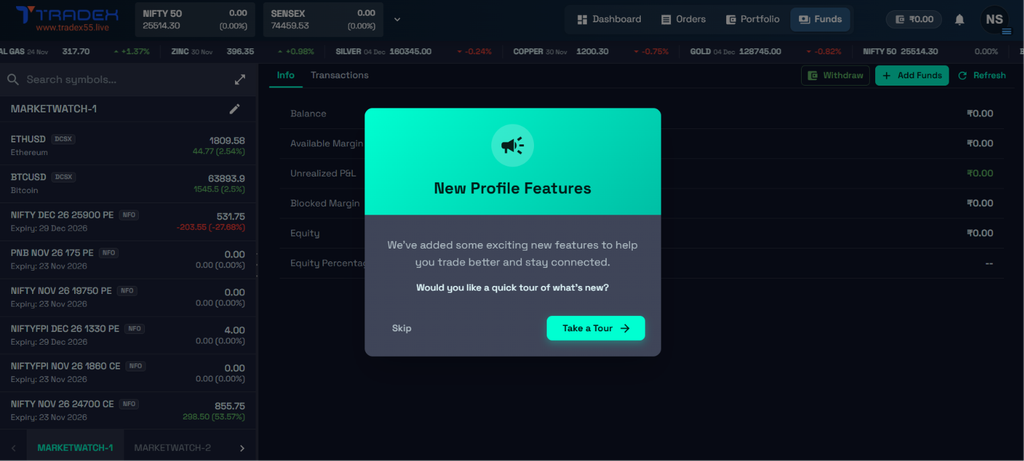
The dashboard opens with a welcome pop-up. It will say “New Profile Features” and offer you a quick tour. You can click “Take a Tour” to see what is new, or hit “Skip” to go straight to the main screen.
Behind the pop-up, you will see your account overview. The top bar displays the NIFTY 50 and SENSEX tickers. The left side shows the Marketwatch with live prices for crypto like ETHUSD and BTCUSD, as well as options data. The main panel shows your Funds, with your balance starting at ₹0.00. Keep your password and 6-digit PIN safe. You will need them for all future sessions.
Tradex Register Errors You Can Sidestep
Even with a simple process, small mistakes can cause a delay. Here are a few common issues and how to avoid them.
If the “Get OTP” button does not work, make sure your phone number is exactly 10 digits after the +91 code, and that your email is formatted correctly. If you get an error on the password field, re-read the requirements. It is easy to miss the special character requirement or to forget a number. If the PIN confirmation fails, ensure both 6-digit entries match exactly.
Read Also: Tradex55 Live Login: How to Access Your Tradex Account and Trading Platform
Finally, if you get an error saying an account already exists, you likely registered that email or phone number previously. Use the “Log In” link on the first pop-up to access your old account instead. This is a common hurdle during any tradex sign up, but it is easy to resolve.
Before You Fund a New Tradex Account
You now have a fully registered account and a secure PIN. Before you make your first deposit, take a few practical steps. Verify that you are on the correct `tradex55.live` domain, especially if you closed the tab and searched for it again. Review the platform’s terms and conditions to understand the fee structure and withdrawal policies. Finally, confirm that all the personal details in your profile are accurate. Taking these steps now ensures a smooth experience when you start trading, wrapping up the final step of your tradex sign up journey.