
Reaching your trading account should take seconds, not a support ticket. This guide walks you through the Tradex55 login process, from finding the page to landing on your dashboard. Every step here reflects the flow you will see on the site. No guesswork. No hidden screens. Just the path from browser to account.
What you need before you start: an account with the platform, the phone number or email tied to it, and your password. That is it. The demo flow shown here skips any verification step, so you will not be hunting for an OTP. Open a browser, keep your credentials handy, and follow along.
Where the Tradex Login Page Lives
Your first job is reaching the right page. Open the browser on your phone or desktop and type in the Tradex55 site address. The homepage loads with the main navigation at the top and a few buttons doing the heavy lifting.
Look for the Login button. It sits in the header area on most views, sometimes labeled “Login” and sometimes paired with a “Sign Up” button beside it. Tap or click it. The page shifts to the login screen, and you are ready for the next step. If you land anywhere that asks for unusual information before you have typed a single credential, close the tab and start again from the main address.
Learn About: Tradex App Login: Step-by-Step Guide to Secure Account Access
Desktop and mobile views differ slightly. On the desktop, the Login button usually sits top right. On mobile, it may be tucked behind a menu icon. Same destination either way. Find it, tap it, move on.
You will find Login and Sign up options at the top of the page
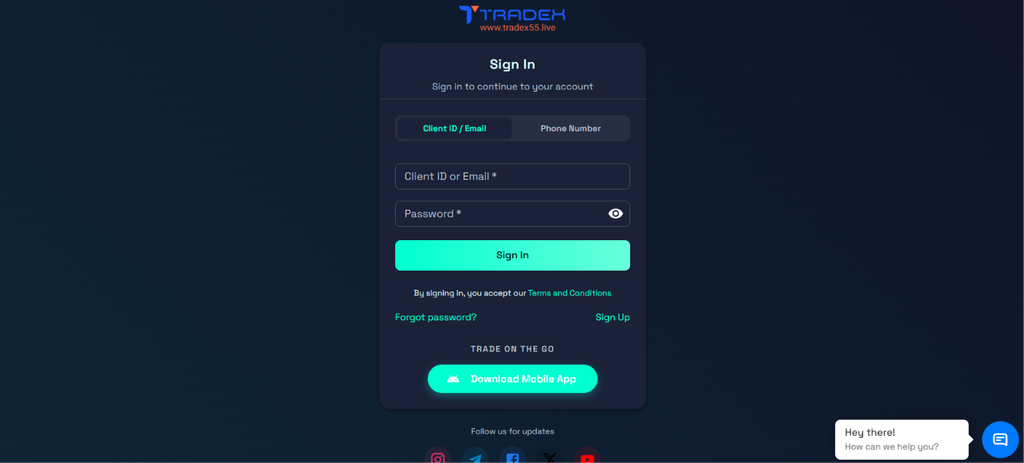
- Login page where you place your details. You can use your email ID or Client ID
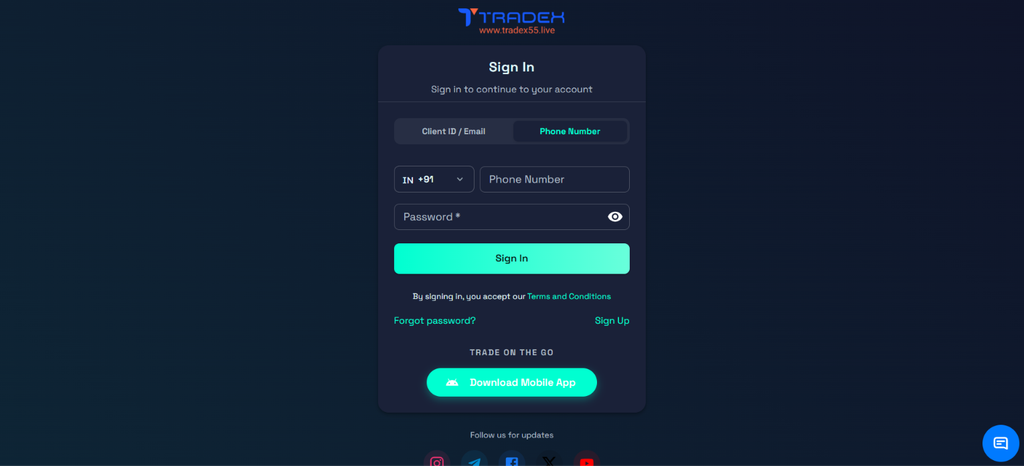
- Login page where you place your details. You can use your phone number
Typing In Your Tradex Login Details
The login form asks for two things. Your phone number or email goes in the first field. Your password goes in the second. The form may show a small eye icon beside the password field. Tap it if you want to see what you typed. It helps when the keyboard is small and the password is long.
Fill both fields carefully. A single typo in the phone number or a misplaced capital letter in the password will send you back to the start. Check the field labels before typing. Some forms ask for the phone number with a country code. Others do not. Match the format the form expects.
Once both fields are filled, press the Login button below the form. The page will take a moment to process, then move you forward. If the button stays greyed out, check that both fields have content. Some forms disable the button until both are filled.
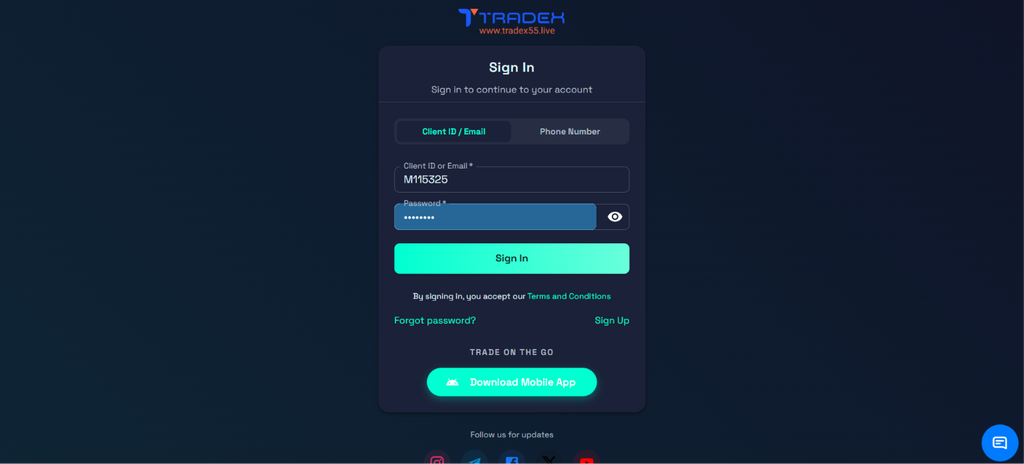
What You See After You Sign In
A successful Tradex live login lands you on the dashboard. This is your account overview. It shows your balance, your open positions if any, and the navigation that takes you to charts, order history, and settings. The layout may differ slightly depending on whether you are on mobile or desktop, but the core elements stay the same.
Take a moment to scan the dashboard before you do anything else. Confirm the account details are yours. Check that the balance matches what you expect. Look at the menu. Find where the settings live, where the logout button sits, and where support can be reached. Knowing the layout saves time later. If something looks off, reach out through the platform’s support channel before placing a trade.
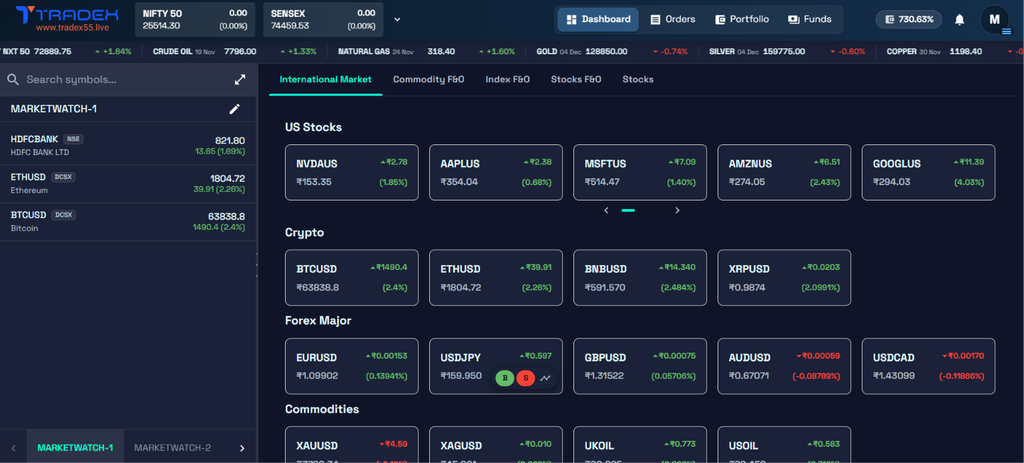
Tradex dashboard once you login.
Tradex Live Login: The Same Door, Different Label
You may see the phrase “Tradex live login” used in some places and “Tradex55 login” in others. The two refer to the same entry process. The label changes. The steps do not. You still reach the login page from the homepage, you still type the same credentials, and you still land on the same dashboard.
Some users search for “tradex live login” expecting a separate portal. There is no separate portal. It is the same flow under a different name. If you have already logged in through the main Tradex login page, you have completed a tradex live login too.
The “live” label shows up in marketing material and in some navigation menus. It signals that the account is active and connected to live markets. It does not change how you sign in. Same fields. Same button. Same result.
When the Tradex Login Page Refuses You
Sometimes the login fails. The password is wrong. The phone number has a typo. The session times out before you finish typing. These happen to everyone.
Start with the obvious check. Retype your password slowly. Confirm the phone number or email matches the one you registered with. If the page has a forgot-password link, use it. The reset flow sends a message to your registered contact and lets you set a new password.
If the page will not load at all, check your internet connection. Try a different browser. Clear the cache if the page keeps showing an old version. A session timeout usually means you left the page idle for too long. Refresh and log in again.
Some browsers save old passwords and autofill them. If the form fills itself and the login fails, clear the field and type the password by hand. Autofill grabs stale data more often than people realize.
One more thing. If the page looks different from what you remember, stop. Confirm the address bar shows the real Tradex55 domain before you type anything. A login page that appears out of nowhere is not the one you want.
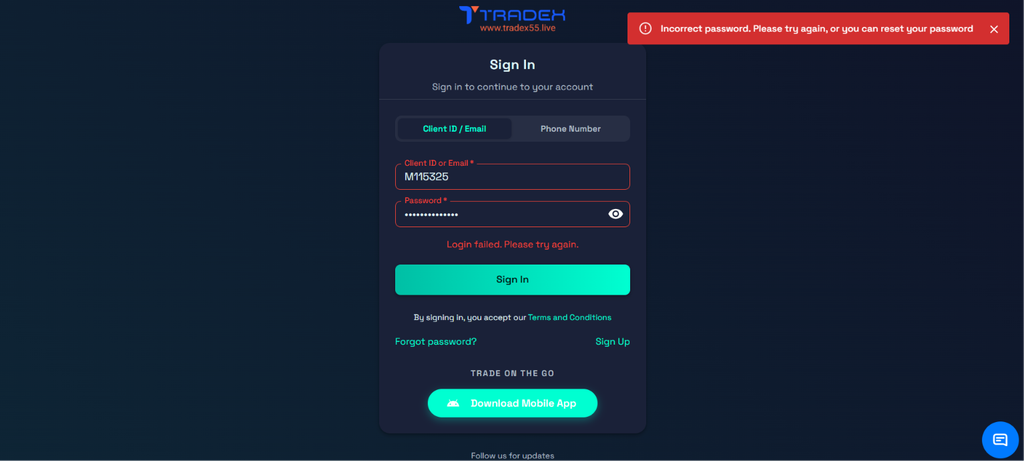
Logging In From a Phone Versus a Desktop
The Tradex55 login works the same on both, but the screens differ. On a desktop, the form sits in the center of the page with plenty of space around it. The fields are wide. The button is easy to hit. On a phone, the form fills the screen. The keyboard covers part of the page. You may need to scroll to reach the Login button after typing.
Neither version is harder. They just feel different. If you usually log in on a desktop and switch to a phone, give yourself a moment to adjust. The same credentials work on both. The same dashboard appears after.
Tablets sit somewhere in between. The layout may match the desktop or the mobile view depending on screen size. Either way, the fields are the same and the button does the same job.
Mobile Layout of the Tradex55 app
Habits That Keep Your Tradex Access Safe
A few small habits go a long way.
Bookmark the login page once you reach it. That way you always return to the same address instead of searching for it and risking a wrong link. Treat your password like a key you do not hand out. No one from the platform needs it over chat or email. If someone asks, that is a signal to walk away.
Log out when you finish on a shared device. On your own phone, a session can stay open, but a shared computer needs a clean exit. Check your account activity now and then. If you see a login you do not recognize, change your password right away.
Use a password you do not reuse anywhere else. Long passwords beat short clever ones. A phrase you remember works better than a random string you have to write down. Update it if you suspect anything.
These habits take seconds. They keep your tradex55 login experience clean and your account in your hands.
More info: Tradex Login 55: How to Access Your Tradex Account